Before you start
In Shopify Admin, prepare a B2B company with at least one location and a company contact linked to a customer record. Assign a company catalog to that location. The catalog must be ACTIVE, have a publication containing the products you want the buyer to see, and have a price list with the agreed prices.
Set the location's payment terms and check its checkout settings. For a separate B2B storefront test, activate customer accounts and use a test customer belonging to the company. Follow Shopify's guide to testing your B2B setup and check the prices and payment terms shown.
PunchRelay's Home page marks the first step Complete when at least one company has a location and a contact. That badge does not check the catalog. PunchRelay verifies catalog availability when it opens for the buyer, including during the self-test.
PunchRelay connects your Shopify B2B store to your buyers' procurement systems: contract prices go out in the punchout catalog, and purchase orders come back to your inbox for review.
Follow the four steps on Home

1. Confirm Shopify B2B setup
Check the company, location, contact and active catalog in Shopify Admin. Return to PunchRelay and reload Home after changing the company setup. The Open Shopify companies button currently shows a reminder to open Companies in Shopify Admin.
2. Create a buyer connection
Select Create connection. Work through the four wizard screens below.
1 · Buyer
Enter a recognizable Connection name (optional). In Buyer identity, enter the buyer's cXML From/Sender identity, such as an Ariba ANID, exactly as their IT team supplies it. Ariba test accounts use the production ANID with -T appended, for example AN01000000099-T.
Set Protocol to cXML only for cXML punchout and purchase orders. Choose cXML + OCI only when the buyer also needs OCI cart return; that option adds an OCI username field. Select Continue.

2 · Shopify B2B mapping
Select the Shopify B2B company, then the Company location, then the Company contact. The location determines contract pricing. Orders are placed as the contact you select. For the example shown, these are Acme Industrial Group, Acme HQ - Receiving and Dana Whitfield. Select Continue.

3 · Protocol options
Use Test for Deployment mode while the buyer works in their test realm. Choose Production when they switch to production credentials. For Cart transfer field, use cxml-urlencoded unless the buyer's IT team asks for cxml-base64. This field controls how the returned cXML cart is carried to the buyer. Select Continue.

4 · Review
Check the buyer identity, company mapping, protocol and cart transfer field. Select Edit to correct an entry or Back to return to the previous screen. When the details are correct, select Create connection.

3. Save credentials and endpoints
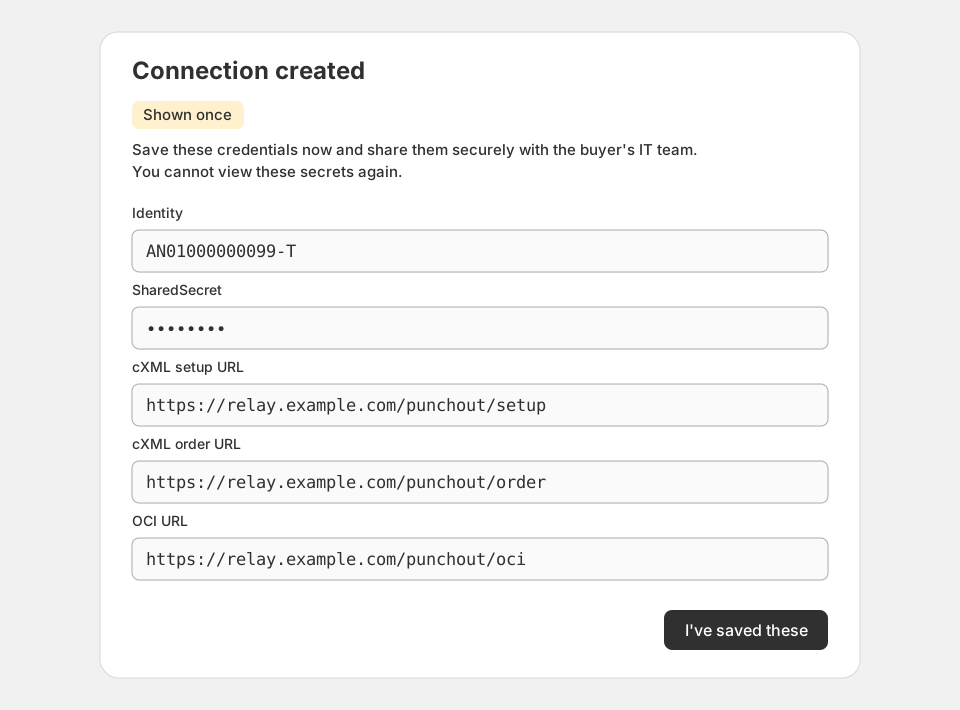
The Connection created dialog displays the credentials once. Save them securely before selecting I've saved these. Use the handoff list below to prepare the buyer's IT team.
4. Run self-test
Open the connection and find its Self-test card, or select Open self-test on Home. Read the test instructions below before running it. The credentials and self-test progress badges on Home reset when the app reloads.
What to send to the buyer's IT team
Send the following through your agreed secure channel. Copy the URLs exactly from the Endpoints card.
- Identity: the buyer identity for this connection.
- SharedSecret: the secret used to authenticate the buyer's cXML requests.
- cXML setup URL: the endpoint that starts a punchout session.
- cXML order URL: the endpoint that receives cXML purchase orders.
- OCI URL: the cart-return integration endpoint for an OCI-enabled connection. OCI returns carts only.
If OCI is enabled, also send the OCI username and OCI password. Secrets are Shown once. Selecting Rotate credentials and confirming it invalidates the old credentials immediately; securely send the new credentials to the buyer before they resume testing.

Run self-test
In the connection's Self-test card, select Run self-test. Read the Run self-test? dialog and confirm with Run self-test. Allow about 30 seconds.
The test runs a real cXML punchout round in the live PunchRelay app against your Shopify store. It sends a test purchase order and confirms it lands in your inbox; no Shopify order is created. It checks one item using this connection's cart transfer field. It does not confirm that the buyer's system received the cart.
| Step | What it checks |
|---|---|
| PunchOutSetupRequest | Sends the connection's identity and secret and checks that a StartPage URL is returned. |
| Open catalog | Opens the catalog and checks that it contains a product row. |
| Add to cart | Adds the first product at its contract minimum quantity. |
| Cart transfer | Reads the returned cXML cart in the configured transfer field and checks that it contains an item. |
| OrderRequest ack | Sends a test purchase order named SELFTEST-... and checks that it is acknowledged. |
| Purchase order in inbox | Checks that the test purchase order is in your Purchase orders inbox with the state Awaiting your approval. |
| Earlier test purchase orders removed | Removes test purchase orders left by earlier self-tests on this connection. The current one stays. |
After OrderRequest ack, the test checks that the test purchase order reached your Purchase orders inbox with the state Awaiting your approval, then removes the test purchase orders left by earlier runs. The current test purchase order stays in the inbox until you reject it or the next self-test removes it. No Shopify order is created or deleted.
Successful results show Self-test passed with every row marked Passed. If a row shows Failed, read its Detail text first. The test stops at that failure, so later rows might not appear.
When a step fails
Open catalog: no catalog rows means the test could not find a product in the catalog. Check that the active catalog is published to the selected company location and contains products with contract prices. This message alone does not prove a publication setting is wrong; a catalog-loading problem can give the same result.
If a step after OrderRequest ack fails, read its Detail text for the specific reason.
Open Sessions to inspect the punchout activity after the round. Use the result table and session details when reporting a failure.

Next: buyer acceptance
A passing self-test proves the merchant-side cXML happy path for one item. The buyer then runs the round from their own Ariba test account, Coupa test instance or OCI test call. OCI acceptance covers cart return; its purchase-order integration is agreed separately.
Ask the buyer to sign off on contract prices, units and frame behaviour in their own system. They should check the returned cart and, for cXML, the resulting purchase order before agreeing that the connection is ready.
What PunchRelay does not cover
E-invoicing mandates
PunchRelay moves carts and purchase orders between the buyer's procurement system and Shopify. It is not an e-invoicing solution. A cXML InvoiceDetailRequest is a procurement-network message, not an electronic invoice under the European standard EN 16931, and PunchRelay does not produce EN 16931, Factur-X, XRechnung, ZUGFeRD or Peppol BIS Billing documents, does not connect to a French plateforme agréée, and does not report invoice data to any tax authority.
France: from 1 September 2026 every VAT-registered business must be able to receive electronic invoices and large and mid-sized companies must issue them; small and micro businesses must issue from 1 September 2027. Germany: receiving has been required since 1 January 2025; issuing is mandatory from 1 January 2027 for businesses with prior-year turnover above EUR 800,000 and from 1 January 2028 for all. PunchRelay does not satisfy these mandates. Sources: impots.gouv.fr, Je passe à la facturation électronique and Bundesministerium der Finanzen, E-Rechnung FAQ, both accessed 16 September 2026.
Agentic storefronts and product publishing
Shopify excludes B2B-only products from AI shopping channels when it can identify them through native B2B features, and warns that products restricted by third-party apps or custom theme code may still appear on agentic storefronts. PunchRelay does not restrict product access on your storefront: its punchout catalog is hosted by PunchRelay, reads your Shopify B2B company catalog, and never publishes, unpublishes or hides products in your store or on any sales channel. Which products appear on an agentic storefront is decided by your Shopify publishing and B2B catalog setup alone. Source: Shopify Help Center, Products on agentic storefronts, accessed 16 September 2026.